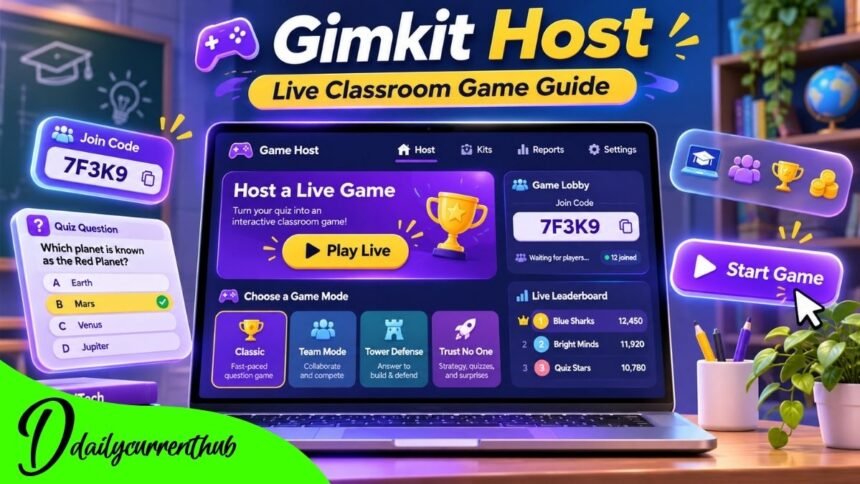
Classroom learning has changed significantly with the introduction of interactive educational technology. Teachers now have access to digital tools that combine academic questions with game-based activities, allowing students to review lessons in a more engaging environment. Gimkit is one such platform, offering live educational games built around question sets called Kits.
The Gimkit host feature allows educators to organize and control these live gaming sessions. Teachers can select questions, choose game modes, invite participants, customize settings, and monitor gameplay through a hosting interface.
Unlike a traditional classroom quiz, Gimkit introduces game mechanics that encourage participation and strategic thinking alongside academic practice.
Understanding how to host Gimkit games helps teachers incorporate interactive revision into their lessons.
This article explains the Gimkit hosting process, important features, classroom applications, player management options, and practical strategies for creating organized educational gaming sessions.
What Is Gimkit Host?
Gimkit host refers to the process and tools used to organize live educational games on the Gimkit platform.
The person hosting a game generally selects the educational content, chooses a gameplay format, and creates a session that students can join.
Gimkit separates its educational questions from its gameplay formats. Kits store the questions, while game modes determine how students interact with the content.
This structure lets teachers use a question set in different gaming environments without rebuilding the entire activity.
A host also controls important session settings, including participation options and game objectives.
Students can join through a code, direct link, or QR code, making participation straightforward.
The main purpose of Gimkit hosting is to combine structured academic practice with interactive gameplay while keeping the educator in charge of the learning activity.
How to Host a Gimkit Game: Step-by-Step Guide
Step 1: Open Your Gimkit Account
To begin hosting, open Gimkit and sign in to your educator account.
The dashboard gives you access to your Kits, classes, reports, and other features.
Teachers can create their own question sets or select suitable content for an upcoming lesson.
Before starting a session, review the questions to ensure they are accurate, understandable, and relevant to the subject being taught.
Step 2: Select a Kit
Choose the Kit you want students to use during the game.
A Kit contains the educational questions that participants will answer.
The content might cover mathematics, science, language learning, history, or another classroom subject.
Select Play Live beside the Kit on your dashboard or within the Kit itself.
This opens the hosting process.
Step 3: Choose a Game Mode
After selecting Play Live, the Mode Picker appears.
Here, teachers can explore different Gimkit game modes and read descriptions explaining how each one works.
Some modes emphasize individual competition, while others encourage cooperation or strategic gameplay.
Select the mode that best supports your lesson objectives and continue to the next screen.
Step 4: Customize Game Settings
The Game Options screen allows hosts to configure their session.
Depending on the selected mode, teachers may adjust game goals, participation settings, nickname options, and gameplay balance.
Certain modes offer additional settings that affect how answering questions relates to progressing through the game.
Reviewing these options before starting helps ensure the session matches the available classroom time and learning objectives.
Step 5: Invite Students
Once the settings are confirmed, Gimkit opens a game lobby.
The lobby displays a unique game code that students can use to participate.
Students can visit the Gimkit joining page and enter the code. Alternatively, teachers can share a direct joining link or display a QR code.
The host can check participants in the lobby before the game begins.
Step 6: Start and Manage the Game
When the class is ready, click Start Game.
The host interface provides controls for managing the live session.
Depending on the mode, teachers can view participants, display leaderboard information, adjust audio, or end the game.
The session concludes when its configured objective is reached or when the host ends it manually.
Understanding the Most Important Gimkit Hosting Features
Interactive Game Controls
The hosting interface gives educators control over the active session.
Teachers can oversee gameplay and respond to classroom needs without creating a new question set.
For example, a host may display leaderboard information during an appropriate moment or end a session when the lesson period finishes.
In supported 2D game modes, hosts can also extend the remaining game time through the timer controls, subject to Gimkit’s time limits.
These features make live hosting more flexible than a fixed-length written quiz.
Multiple Game Modes
Game mode selection is an important part of the Gimkit experience.
Different modes create different learning environments.
For example, Don’t Look Down combines academic questions with a climbing challenge, while One Way Out uses cooperative gameplay in which students work toward a shared objective.
The Mode Picker includes descriptions and labels that help educators identify suitable activities.
Choosing the right format can support the intended balance between competition, collaboration, and academic practice.
Classroom Participation Management
Gimkit offers several ways to manage participants.
Hosts can connect classes, use a nickname generator, and set whether students can join after a game begins.
These options provide flexibility for different teaching environments.
A class with students arriving at different times might benefit from late joining. A tightly controlled classroom activity may work better with that option disabled.
The best configuration depends on the teaching situation.
The Role of a Gimkit Host in Classroom Learning
Creating an Organized Learning Environment
Successful game hosting requires more than simply selecting Play Live.
Teachers must consider the activity’s academic purpose, how long students should play, and what they are expected to learn.
A well-prepared question set matters because gameplay alone does not guarantee understanding.
Teachers can improve a session’s educational value by selecting questions that address recently taught concepts and common misconceptions.
Clear instructions also help students understand whether they are working individually, competing against classmates, or collaborating as a team.
Encouraging Student Participation
Game-based classroom activities can provide another way for students to practice familiar material.
Gimkit combines question answering with interactive objectives, giving students a reason to revisit academic content throughout a session.
However, educators should avoid treating game rankings as the sole measure of learning.
Some students may perform strongly in gameplay because of speed or familiarity with a mode, while others may demonstrate understanding through careful responses.
The host’s responsibility is to keep the academic objective central.
Gimkit Host Privacy, Nicknames, and Classroom Security
Managing Student Names and Access
Participant management matters most when games are hosted in educational settings.
Gimkit provides a Nickname Generator that hosts can enable when classes are not connected.
In non-2D game lobbies, hosts can review participant names and remove players with inappropriate names.
Teachers can also turn off late joining if unwanted participants are entering an ongoing session.
These controls help educators maintain a more organized game environment.
Responsible Use of Classroom Technology
Teachers should follow their school’s policies regarding student accounts, classroom technology, and personal information.
A sensible approach is to avoid displaying unnecessary student details publicly and to use appropriate participation settings.
Although Gimkit provides tools for organizing games, educators remain responsible for deciding how the platform fits their classroom practices.
Gimkit Host Reports and Student Performance
One of Gimkit’s educationally useful features is its reporting system.
After a teacher hosts a Kit they own, Gimkit provides a report containing class-level and individual performance information.
Available report views include Student Overview, General Overview, and Question Breakdown.
These reports help teachers identify questions students answered incorrectly and concepts that may need additional explanation.
Teachers can open reports after a game or access them later through the dashboard.
Teachers can also save reports as PDF files.
This creates opportunities to use game results as part of formative assessment rather than treating the session purely as entertainment.
Gimkit Host Free vs Premium Features
Gimkit provides a free educator account through Gimkit Basic.
The free plan supports live hosting with access to featured game modes, classes, and reports.
Featured modes rotate so that the available selection can change.
Gimkit Pro expands access to additional modes and offers features such as assignments, audio questions, and image uploads.
Player limits also depend on the game type and account circumstances.
Gimkit documents a maximum of 500 students for live games generally and a separate maximum of 60 players for 2D game modes. Basic users hosting Pro-exclusive modes are limited to five players, while logged-in student accounts hosting games also have a five-player limit.
For educators planning regular classroom activities, understanding these differences can help them choose the right account and game mode.
Common Gimkit Host Problems and Practical Solutions
Students Cannot Join the Game.
If students have trouble joining, start by confirming they are using the correct code or joining link.
Check the lobby and review whether late joining is permitted.
If a student belongs to a connected class, the joining experience may differ from manually entering a code.
Game Connection Issues
A weak or restricted internet connection can interrupt gameplay.
Gimkit recommends checking its server status and running its compatibility test when connection problems occur.
School network restrictions may prevent the game from communicating with Gimkit’s servers. In these cases, technical staff may need to review network permissions.
Problems Loading 2D Game Modes
Some 2D game issues involve browser graphics support.
Gimkit uses WebGL for its 2D modes.
Keeping your browser and graphics drivers updated, and ensuring WebGL is enabled, can help resolve device compatibility issues.
Public Misconceptions About Gimkit Hosting
A common misunderstanding is that every student must create an account before joining.
Gimkit states that students can participate in live games without creating individual accounts.
Another misconception is that every mode is available without restrictions. In reality, access depends on whether a mode is featured or Pro-exclusive.
Some users also confuse live hosting with assignments.
Live games are organized as shared sessions, while assignments allow students to complete supported activities independently. Assignments require Gimkit Pro.
Recognizing these differences helps educators choose the right feature and avoid unexpected limitations.
The Future of Gimkit Host and Interactive Education
Gimkit demonstrates how digital games can be incorporated into everyday teaching activities.
Its combination of question sets, selectable game modes, live controls, and performance reporting provides educators with several ways to organize revision sessions.
The broader educational value of tools like Gimkit depends on how thoughtfully they are used.
A carefully structured activity can encourage participation and give teachers additional information about student understanding.
At the same time, traditional explanations, classroom discussion, and individual feedback remain essential.
For schools exploring game-based learning, Gimkit hosting offers a practical example of how interactive technology can complement established teaching methods.
Conclusion
The Gimkit host feature gives educators a structured way to organize interactive learning sessions while maintaining control over game settings, participation, and classroom activities.
From selecting a Kit and choosing a game mode to sharing joining codes and reviewing performance reports, the hosting process brings several teaching functions together in one platform.
Its main advantage is flexibility. Teachers can use Gimkit for classroom revision, collaborative activities, or knowledge checks, depending on the learning objectives and available features.
However, effective hosting still requires appropriate questions, clear expectations, and thoughtful interpretation of student performance.
Used responsibly, Gimkit can complement classroom teaching by providing an engaging environment in which students revisit educational material.
For teachers who want to explore interactive revision activities, understanding the hosting tools is a useful first step.
(FAQs)
1. What is Gimkit host?
Gimkit host refers to the tools and process used to start, customize, and manage live educational games on the Gimkit platform.
2. How do I host a Gimkit game?
Sign in to your educator account, select a Kit, click Play Live, choose a game mode, configure your settings, share the joining information, and start the session.
3. Can I host Gimkit for free?
Yes. Gimkit Basic allows educators to host live games using featured game modes, subject to the platform’s applicable limits.
4. Do students need accounts to join Gimkit?
No. Students can join live Gimkit games without creating individual accounts by using the joining options the host provides.
5. How many students can join a Gimkit game?
Gimkit documents a general live-game maximum of 500 students and a separate maximum of 60 for 2D modes. Additional restrictions apply to certain account types and modes.
6. Can a Gimkit host remove unwanted players?
Yes. Hosts can manage participants, including removing players with inappropriate names from supported lobbies, and can turn off late joining.
7. Can teachers see student results after hosting?
Yes. Gimkit provides reports for games hosted using a Kit owned by the teacher, including individual performance and question breakdowns.
8. What is the difference between Gimkit hosting and assignments?
Hosting creates a live shared game session. Assignments allow students to complete supported activities independently and are available through Gimkit Pro.